The problem with untracked codes
A plain QR code to your home page looks the same in analytics as any other visit. If you print a flyer, a poster and a table card, you cannot tell which one worked. UTM parameters fix this by adding a label to the link, which tools such as Google Analytics read and report.
Build a tagged link
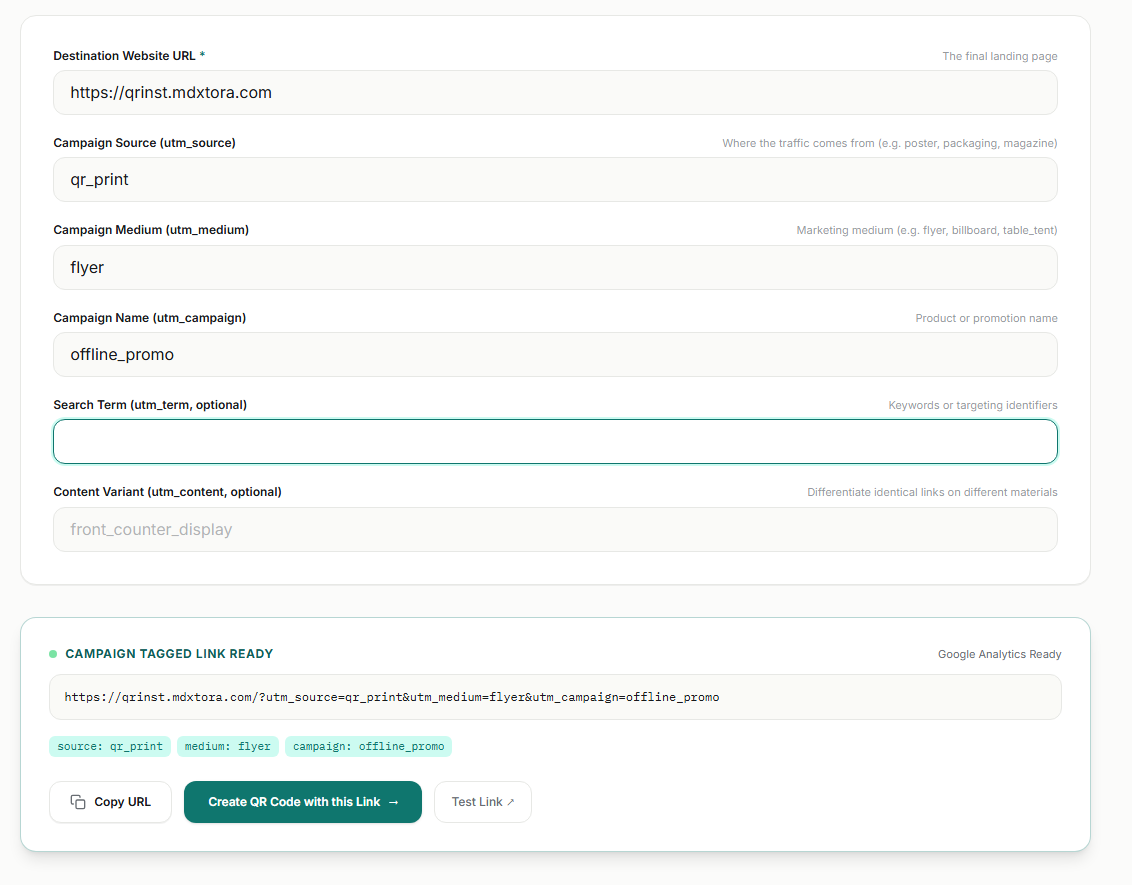
- Open the UTM builder.
- Enter the destination page.
- utm_source: where the traffic comes from, for example
qr_print. - utm_medium: the material, for example
flyerortable_tent. - utm_campaign: the promotion name, for example
offline_promo. - Optionally add a term and a content variant to tell two prints of the same campaign apart.
Turn it into a QR code
Press Create QR Code with this Link and the tagged link is carried into the generator. Download the code and use a different link for each print run so the reports separate them. Keep names lowercase and consistent: Flyer and flyer appear as two different values in reports.
Static or dynamic?
A tagged link inside a static code cannot be changed later. If you might want to edit the destination after printing, use a dynamic code. The static vs dynamic guide explains the trade-off. A longer link also makes a denser code, so test it with the QR checker.
More guides
- What size should a printed QR code be?
- How to make a Wi-Fi QR code guests can scan to connect
- QR code not scanning? 9 common causes and fixes
- How to make a QR code menu for your restaurant
- How to put a vCard QR code on your business card
- Static vs dynamic QR codes: which one should you use?
- How to make a WhatsApp QR code that opens a chat
- Are QR codes safe? How to spot and avoid malicious codes
- How to add a logo to a QR code without breaking it
- PNG, SVG or PDF? Which QR code file format to download
- QR code colours: what scans and what does not
- How to make an email QR code with a pre-filled subject and message